
JSEAsy v4.6 Download and Installation Guide
When you purchase a downloaded version of the JSEAsy Environmental Health and Safety (EHS) Software you will receive an email with an invoice and a link to download the software.
You can also download from our website by logging into your account and then you will see a downloads tab.
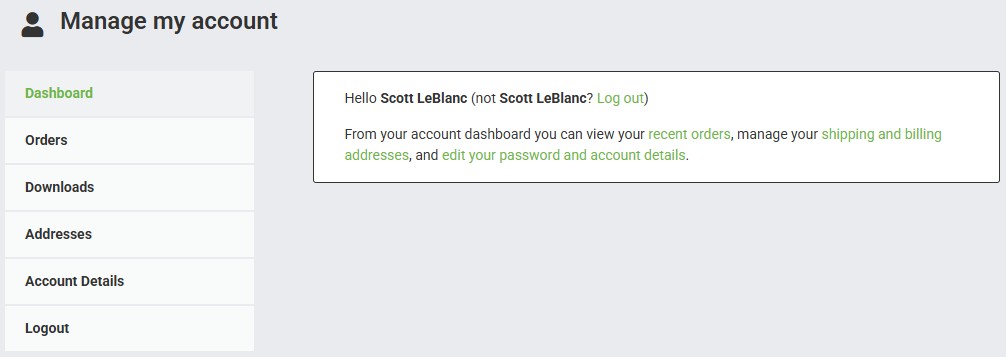
Follow these steps to install the JSEAsy Safety Management Software:
Download the Zip folder

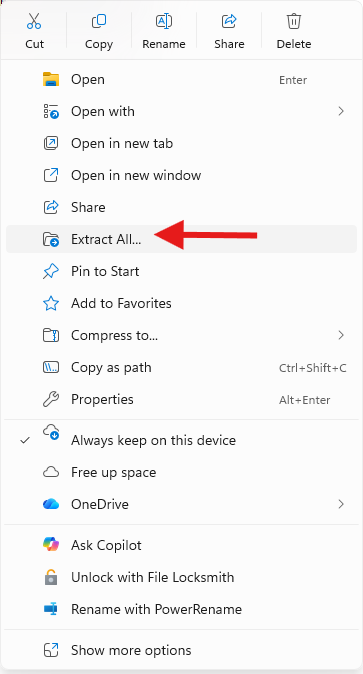
Right click on the folder and select, Extract all
Select a destination and Extract Files
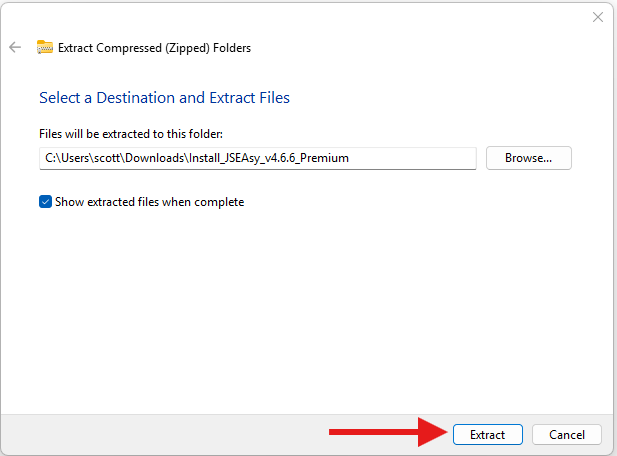
If the folder has not opened automatically open the folder

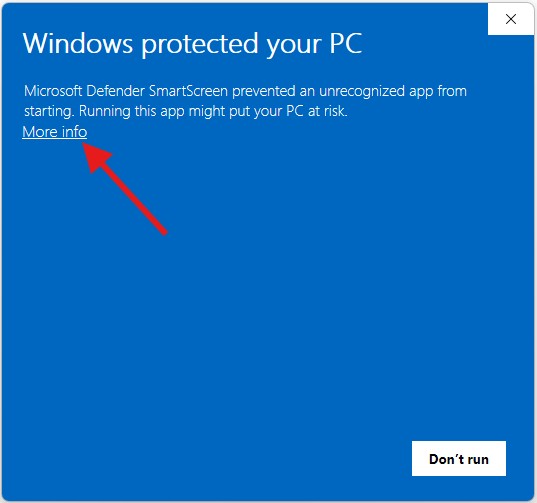
Double click on setup.exe

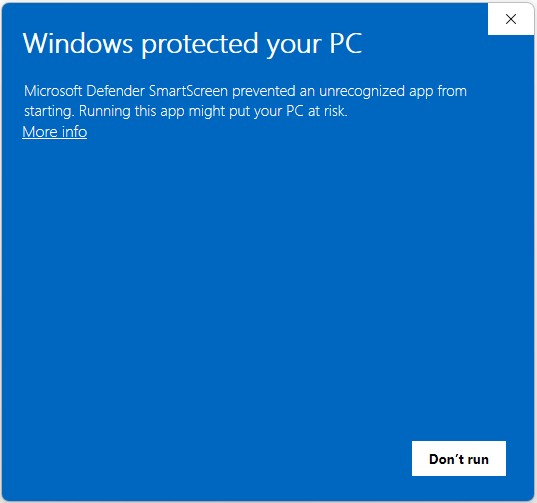
This is normal window behavior. Click on More info
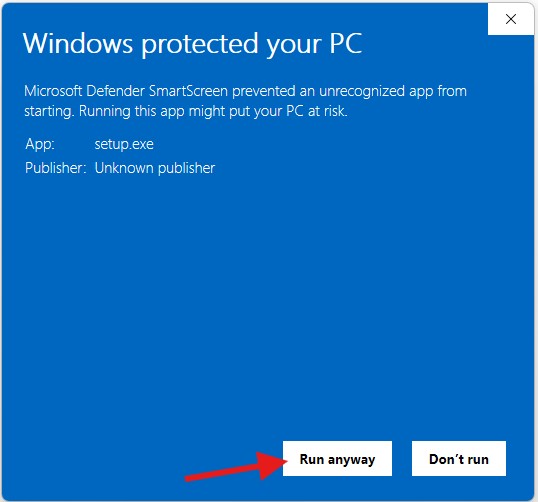
Run anyway
The installation wizard will now start.
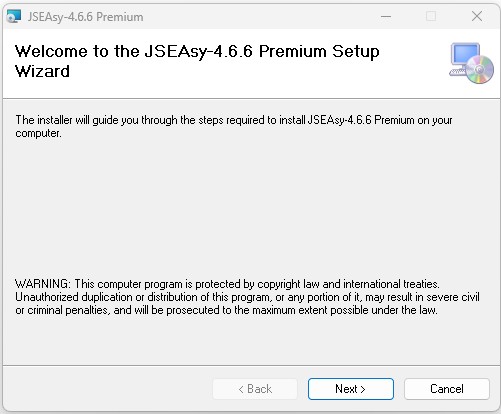
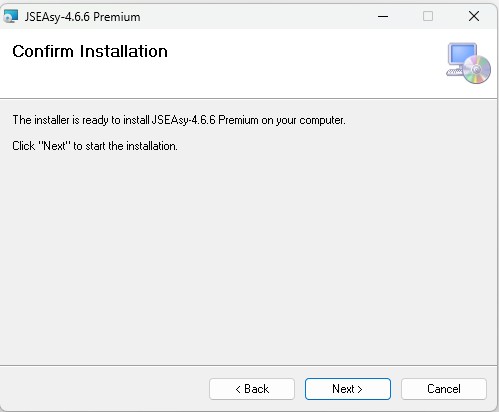
Click on Next
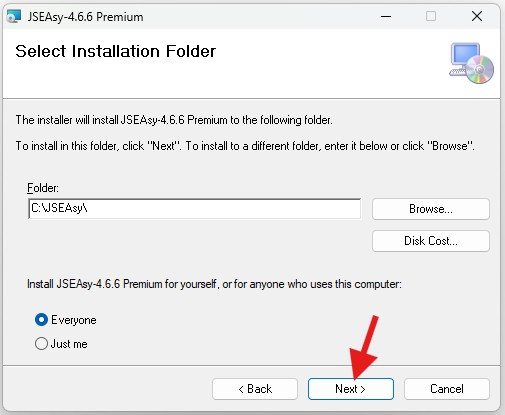
Click Next
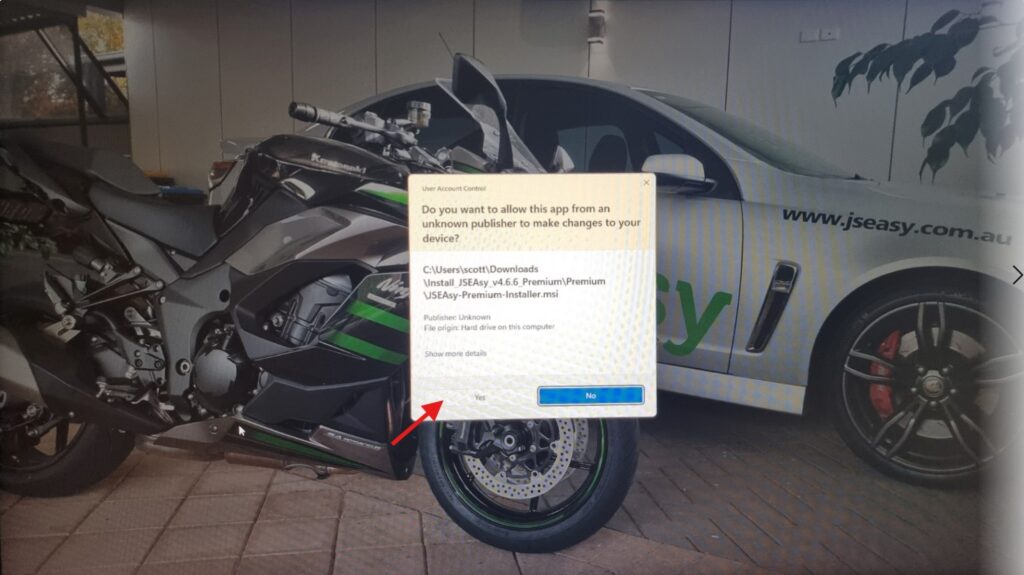
Allow this App to make changes
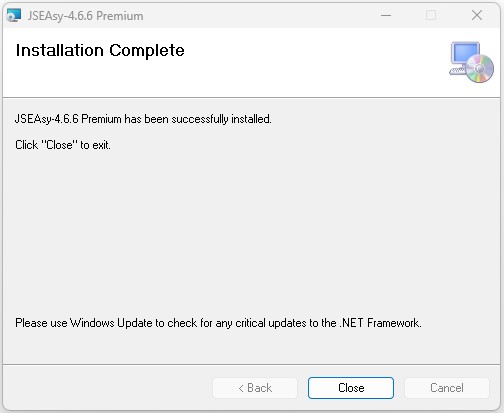
The installation of the JSEAsy EHS software is now complete. You can close the setup wizard.
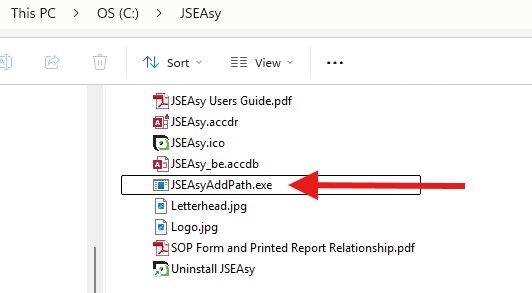
Add a Safe Location
When the installation is complete, navigate to C:\JSEAsy and double click on JSEAsyAddPath.exe
This will add a safe location to your PC for Microsoft Access. This will allow you to use the JSEAsy software without constantly having Microsoft Access security notices stopping you and asking you to confirm.
Is it safe to add JSEAsy as a Trusted Location?
Yes, it is entirely safe. Microsoft Access displays potential security notices whenever a program utilizes background macros to automate tasks. JSEAsy requires these macros to instantly build your JSEAs and site-specific risk assessments. Because Microsoft cannot verify newly installed local databases automatically, it triggers a warning. Adding JSEAsy as a safe location tells Windows that the software is trusted, giving you full, uninterrupted access to all safety features without constant security prompts
The Installation of your JSEAsy EHS software is now complete
- Look for the Black and Green JSEAsy shortcut on your desktop.
- Double click to launch the application
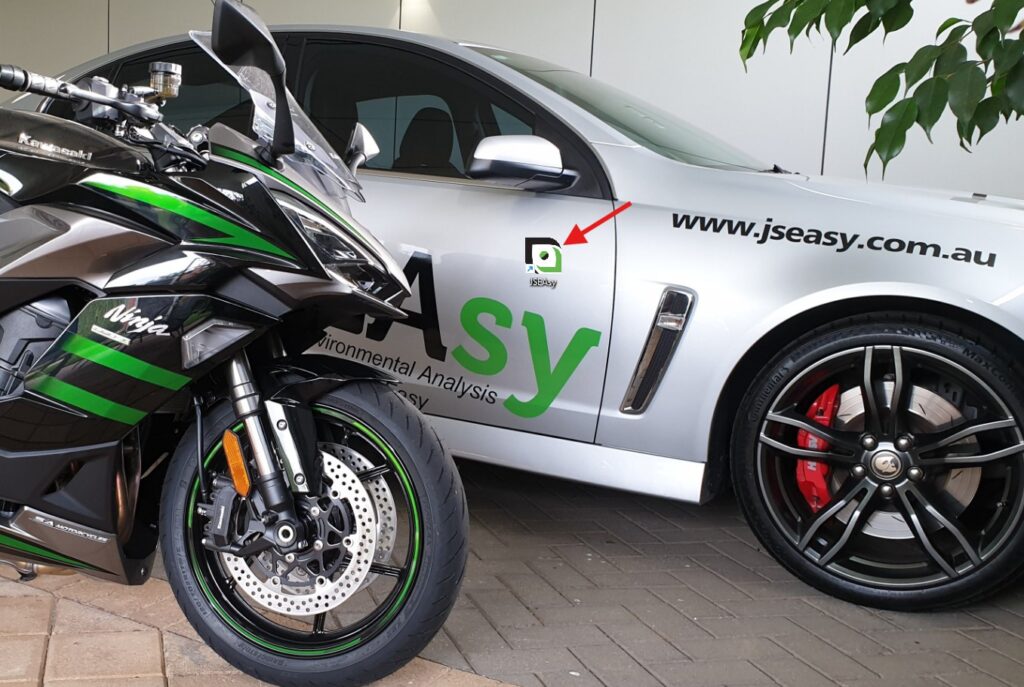
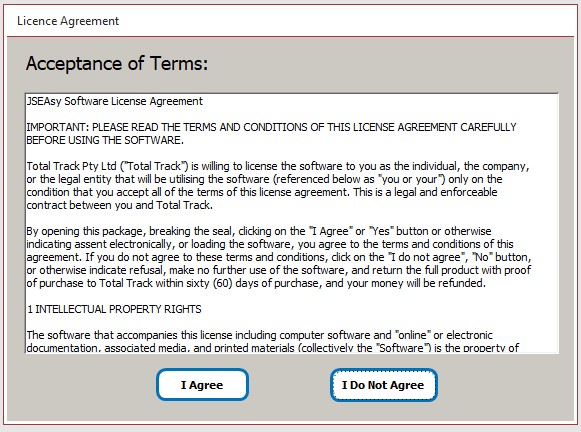
When the application starts for the first time you will be asked to agree to our licence agreement.
Click I Agree to continue
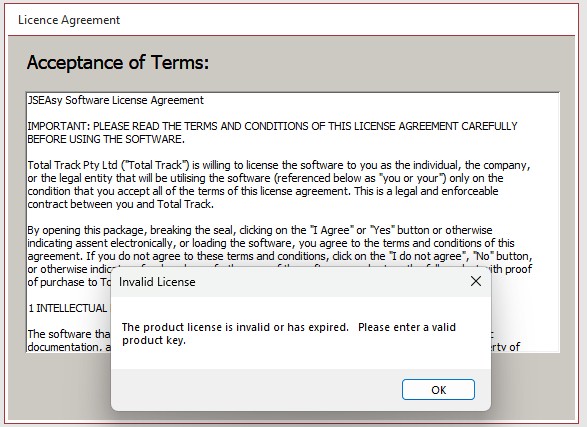
An invalid or expired JSEAsy software Licence notification will pop up.
Click Ok
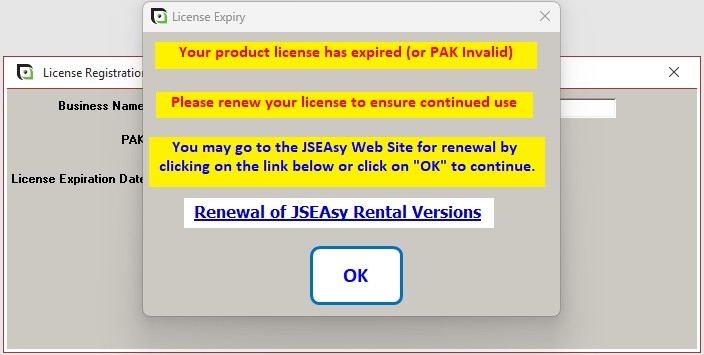
JSEAsy product licence has expired notification will then come up.
Click ok to Enter in your licence details.
JSEAsy licence registration fields.
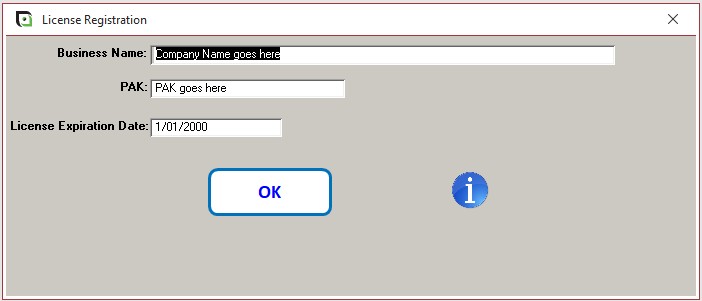
On your purchase confirmation email that you would have the link to download the software and your licence detials.
You will need to enter the details for all three fields exactly as shown below to register/ unlock the software. It’s a good idea to copy (Ctrl+c) and Paste (Ctrl+v) the details. Just be careful not to copy and or paste a blank space before or after.
- Business Name: As shown on your order is now complete email
- Expiry Date: As shown on your order is now complete email
- PAK: As shown on your order is now complete email
Click Ok to continue.
The defaults update table will now be displayed.
Note: Premium version shown below. Standard version have a reduced number of fields to complete.
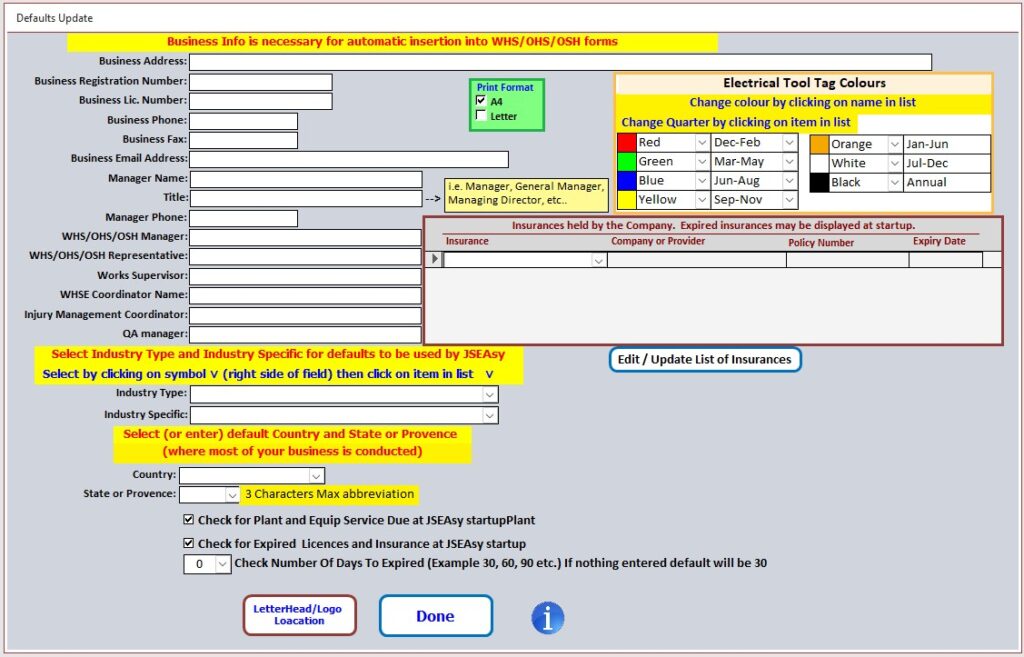
Enter in your default details
- Business Address: This is your principal place of business or registered office. This address will be used for many of the WHS forms and Policies in the Premium Version
- Business Registration Number: This may be your company number or in Australia your Australian Business Number (ABN)
- Business Licence Number: If your business requires a trade or industry licence to operate, insert the number here.
- Business Phone: The primary contact number for your business
- Business Fax: The advertised fax number for your business (If you have one)
- Business Email Address: the generic or advertised email address for your business
- Manager Name: The name of the Manager for the business
- Title: The job title of the manager eg. Director or General Manager
- Manager Phone: The contact number for the manager
- WHS/ OHS managers name
- WHS/ OHS Representatives name (If you don’t have an employee elected WHS Representative, this could also be the WHS manager)
- Works Supervisor’s name (The person responsible for supervising the workers)
- Workplace Health Safety and Environmental Coordinators name:
- Injury Management Coordinator’s name:
- Quality Assurance (QA) Manager’s name:
- Industry Type: The type of industry you operate in.
- It is not recommended to select , “all industry types” as a default. This will return a very small amount of pre-populated lists in the drop downs thoughout the software.
- If you work primarily in the construction industry, this is the best industry type to use a s default.
- Industry Specific: Your industry specific business or trade
- If you work across multiple trades, General Building is the best industry specific.
- Country: Your default country of operation. (May be changed if you are working internationally)
- State or Region: Your default state or region of operation. (May be changed if you are working across borders)
- Report title: This is linked to your selected region at installation but may be changed
- Acronym: The acronym used in your region
- List insurances held by your organisation (This will be used to prompt for expiry dates and automatic insertion into site management plans in the Premium versions)
- Select if you want JSEAsy to check for expired licences and insurances at startup
Note: If you are adding a new Country or State/ Province, you will need to go to regulator Info Update and also fill in the defaults for the region
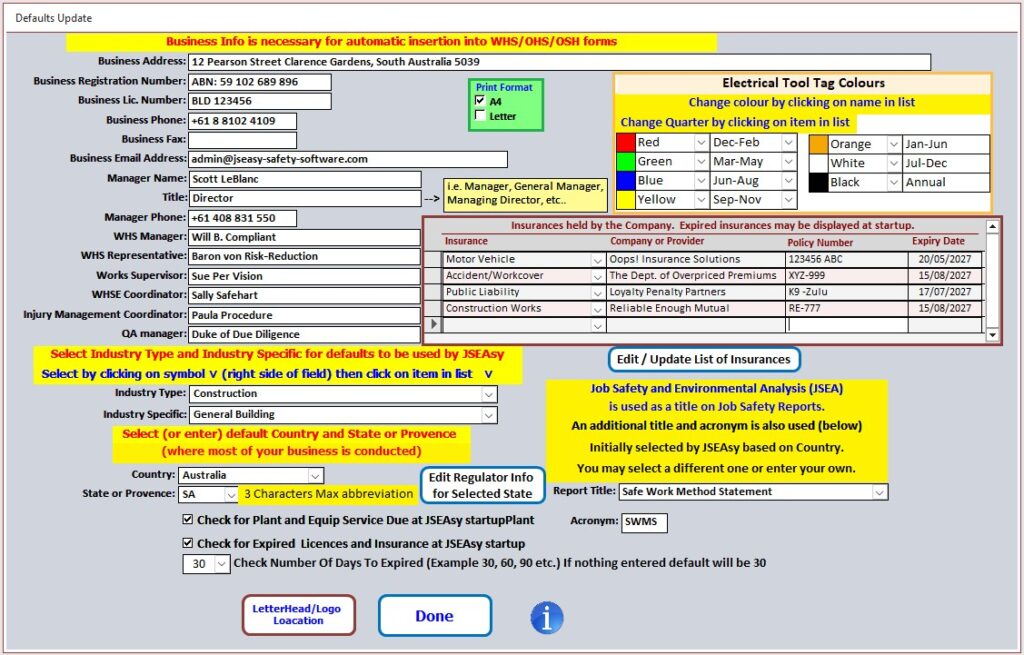
Check for Plant and Equipment Service Due at JSEAsy startup
This will display a table of any plant or equipment past or due for a service within the selected number of days.
Check for Expired Licenses and Insurances Due at JSEAsy startup
This will display a table of any licenses or insurances past or due for renewal within the selected number of days.
Letterhead/ Logo Location
By default JSEAsy puts your letterhead and logo files in C:/JSEAsy . You can change this to wherever you want.
Note: You must have the Letterhead and Logo files in the desired location first.
- Letterhead.jpg
- Logo.jpg